
Reset Your Password
If you have forgotten your password or cannot log in, you can request a password reset link to be sent to your email address.
How to reset your password
Section titled “How to reset your password”-
Go to the login page
-
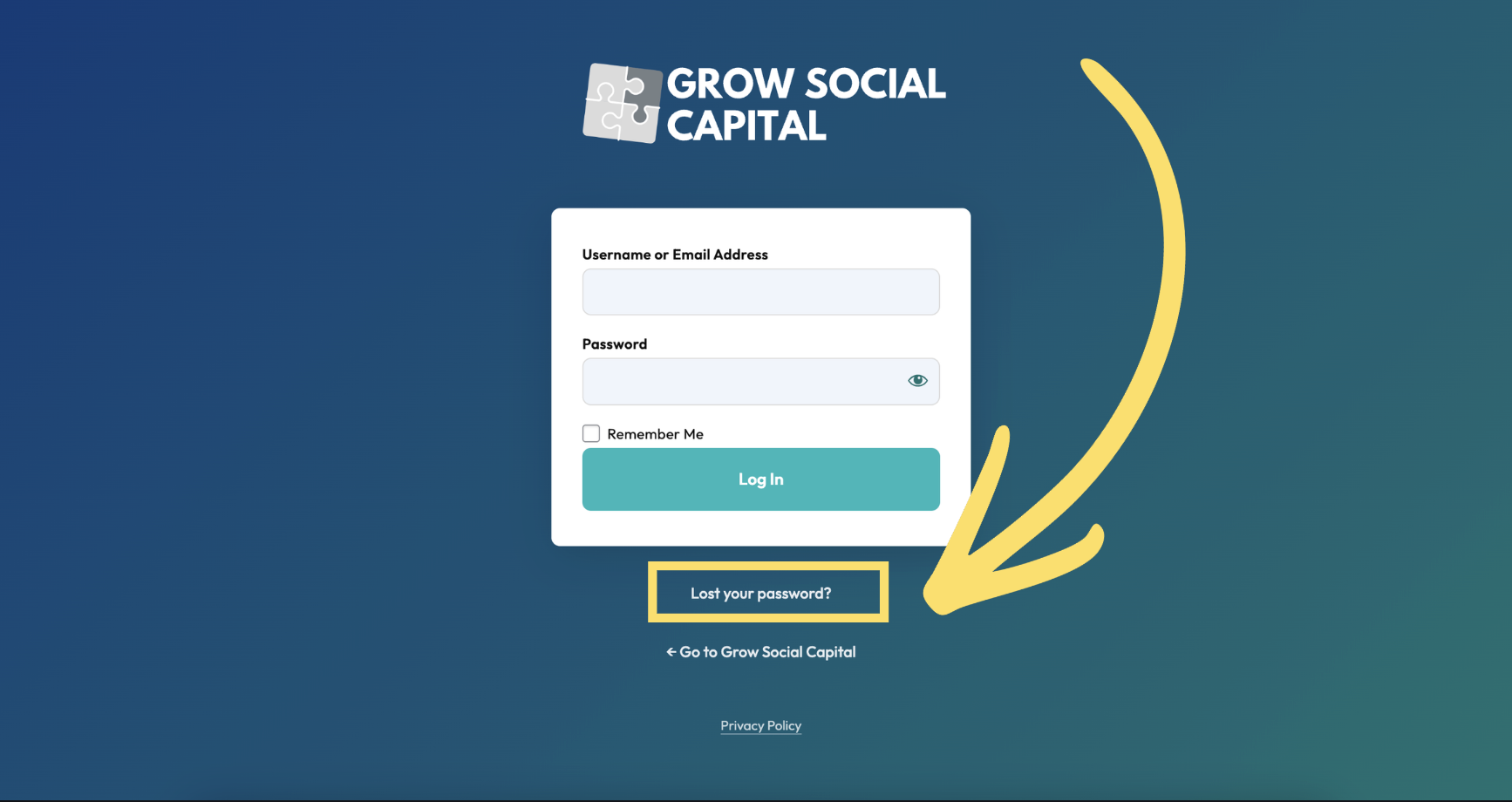
Click “Lost your password?”
Below the Log In button, click the Lost your password? link.
-
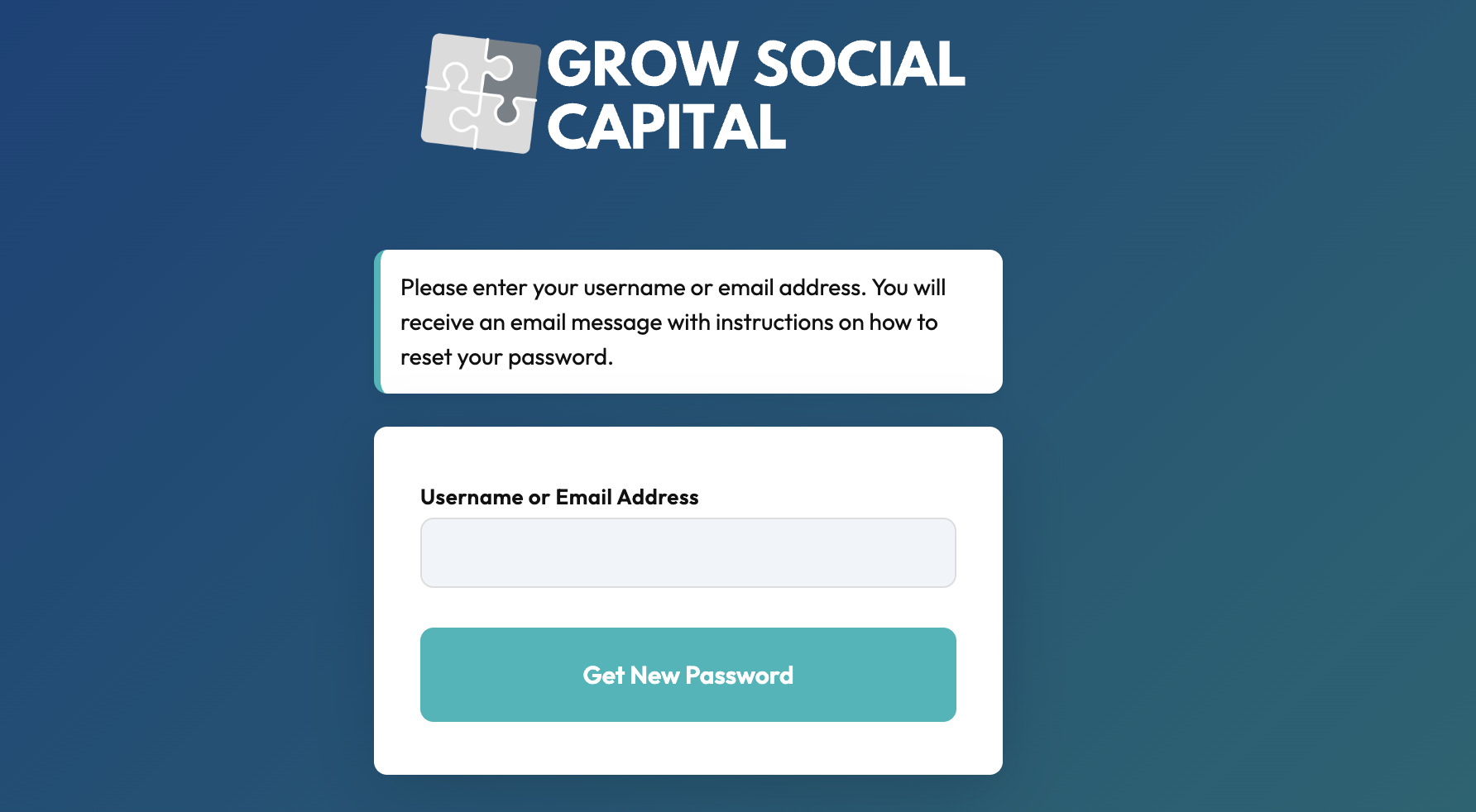
Enter your username or email address
On the password reset page, type in either your username or the email address linked to your account, then click Get New Password.
-
Check your email
WordPress will send a password reset link to your email address. Check your inbox — the email may take a few minutes to arrive. If you do not see it, check your spam or junk folder.
-
Click the reset link
Open the email and click the Reset Password link inside it. This will take you to a page where you can set a new password.
-
Choose a new password
WordPress will suggest a strong password. You can use the suggested one or type your own. Make sure your password is at least 12 characters and includes a mix of letters, numbers, and symbols.
Click Save Password when you are done.
-
Log in with your new password
Go back to the login page and log in with your new password.
Still can’t access your account?
Section titled “Still can’t access your account?”If you do not receive a reset email, or your account no longer exists, contact the website administrator to have your account checked or recreated.
Page last updated at 20 April 2026 20:46 by Sarah Tamsin