
Adding a New Service
-
Navigate to Add New Service
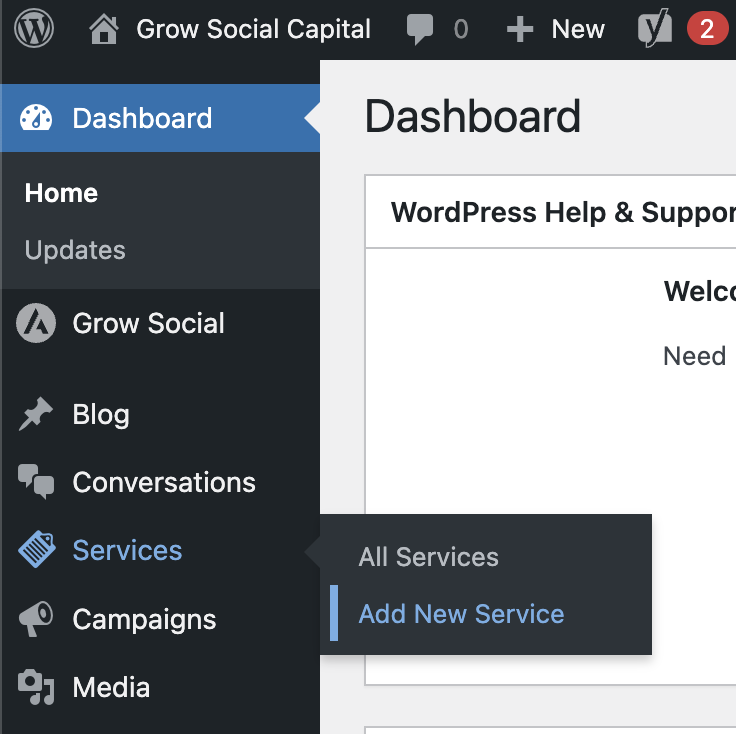
Section titled “Navigate to Add New Service”In the WordPress dashboard, hover over Services in the left-hand menu. A sub-menu will appear — click Add New Service.
-
Open the settings panel
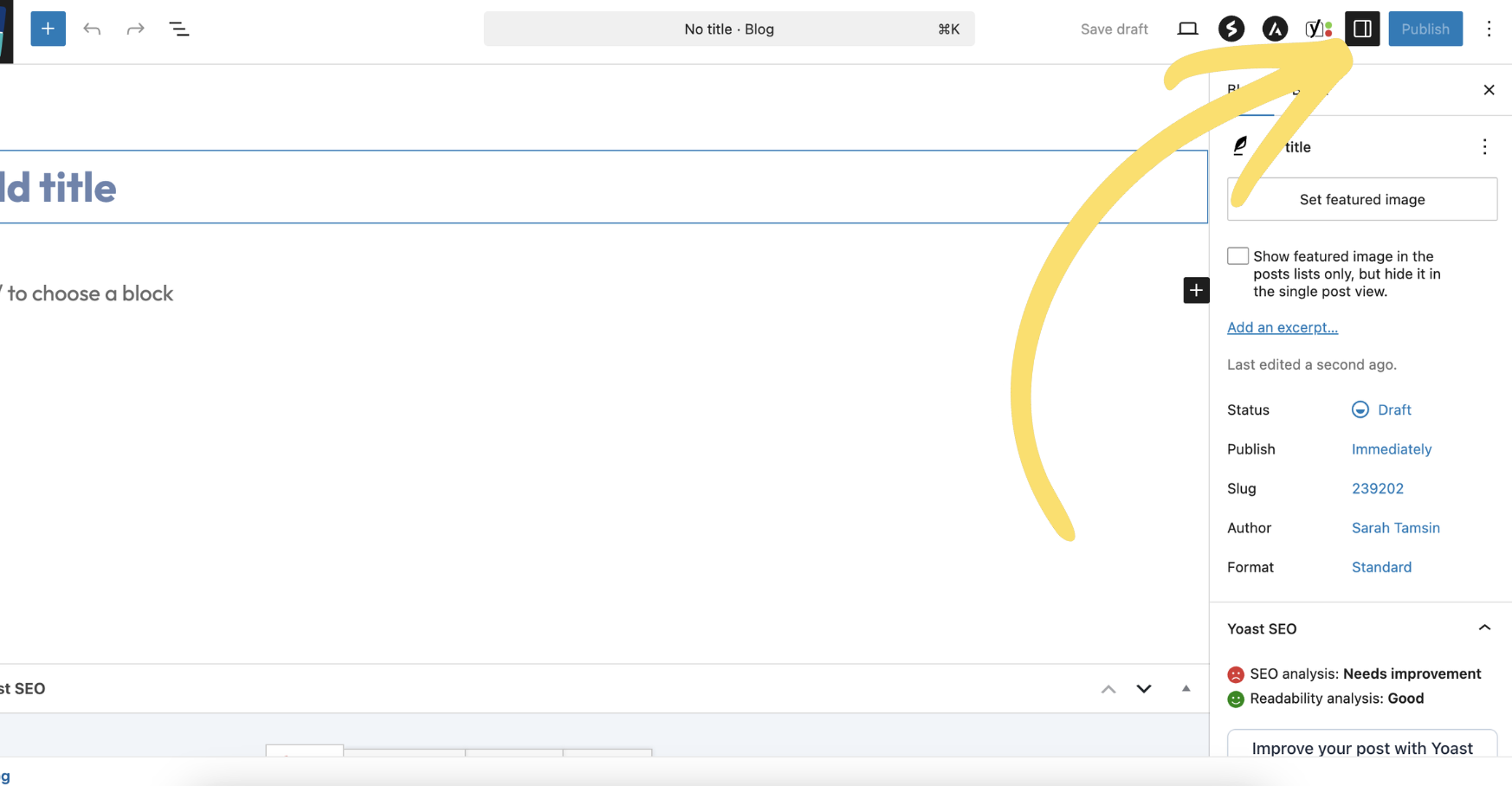
Section titled “Open the settings panel”The editor will open. You need the right-hand settings panel to be visible — it contains the featured image and publish controls.
If you can see a panel on the right with tabs labelled Service and Block, you are ready to continue.
If the panel is not visible, click the Settings icon (the square with two unequal columns) in the top-right toolbar to open it.
-
Add your title
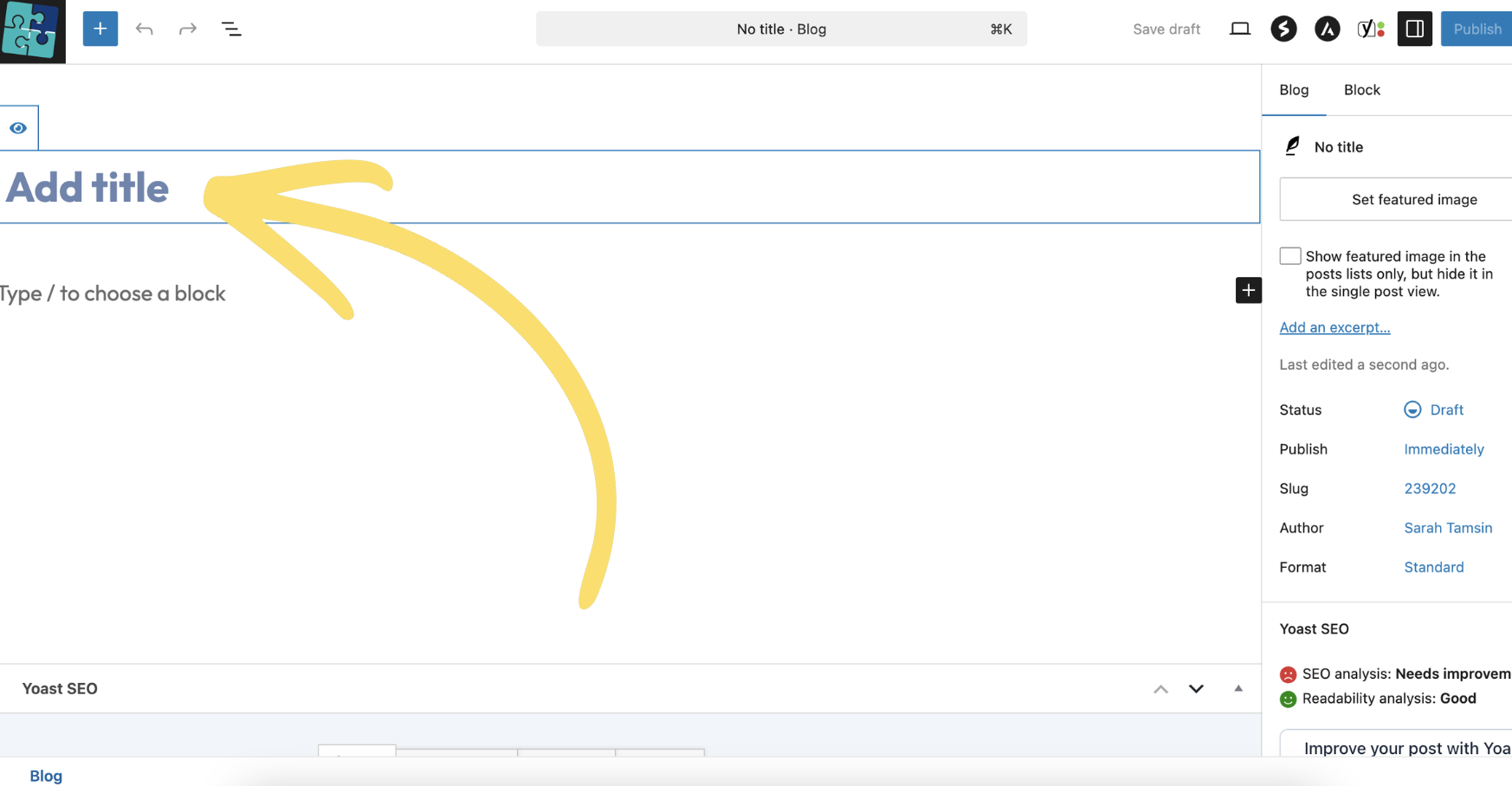
Section titled “Add your title”Click the Add title area at the top of the editor and type your service title.
-
Write your service content
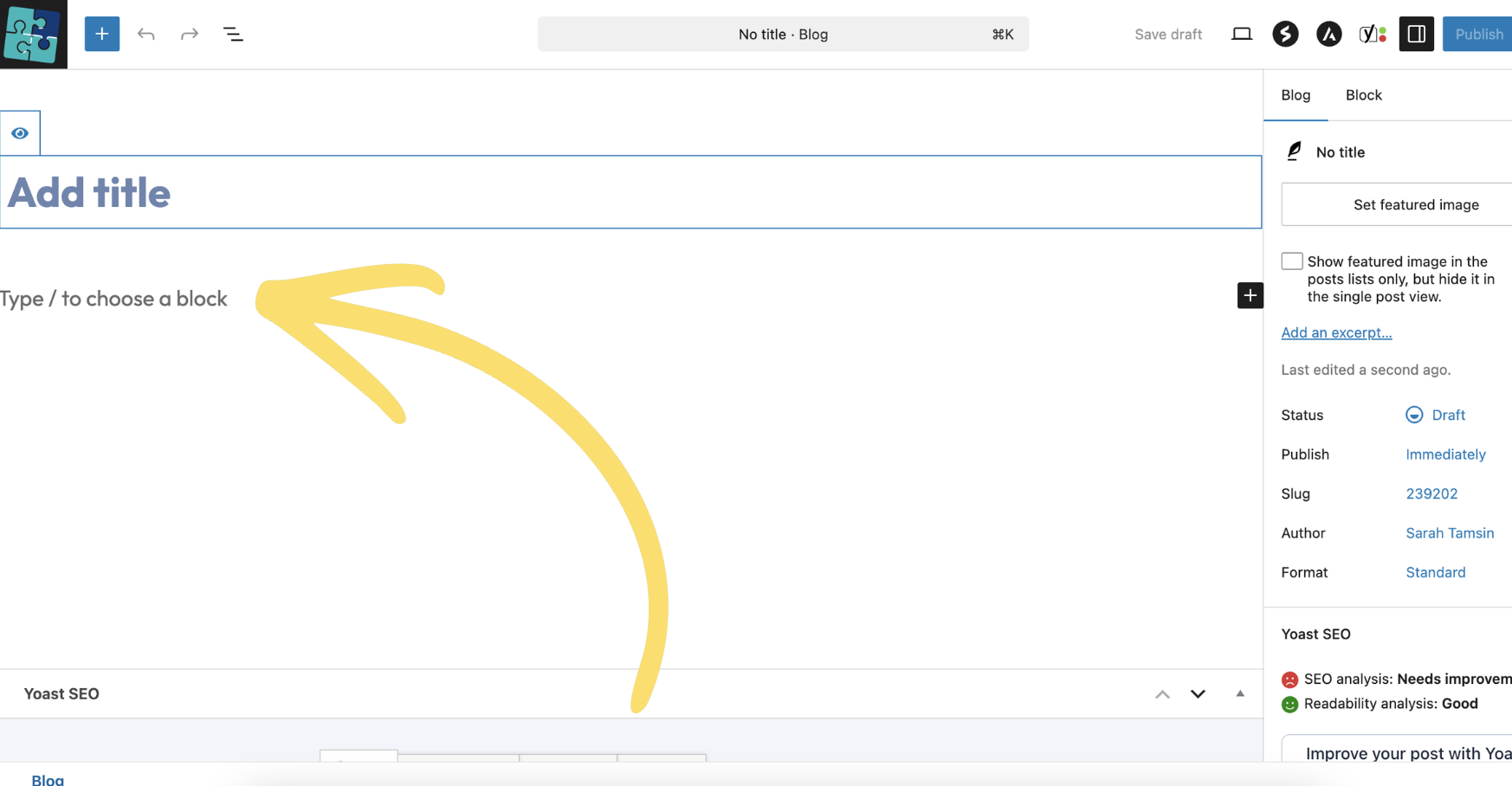
Section titled “Write your service content”Click in the content area below the title and start writing. Use the WordPress block editor to add paragraphs, headings, images, and buttons as needed.
For guidance on using the block editor, see the WordPress Editor guide.
-
Set a featured image
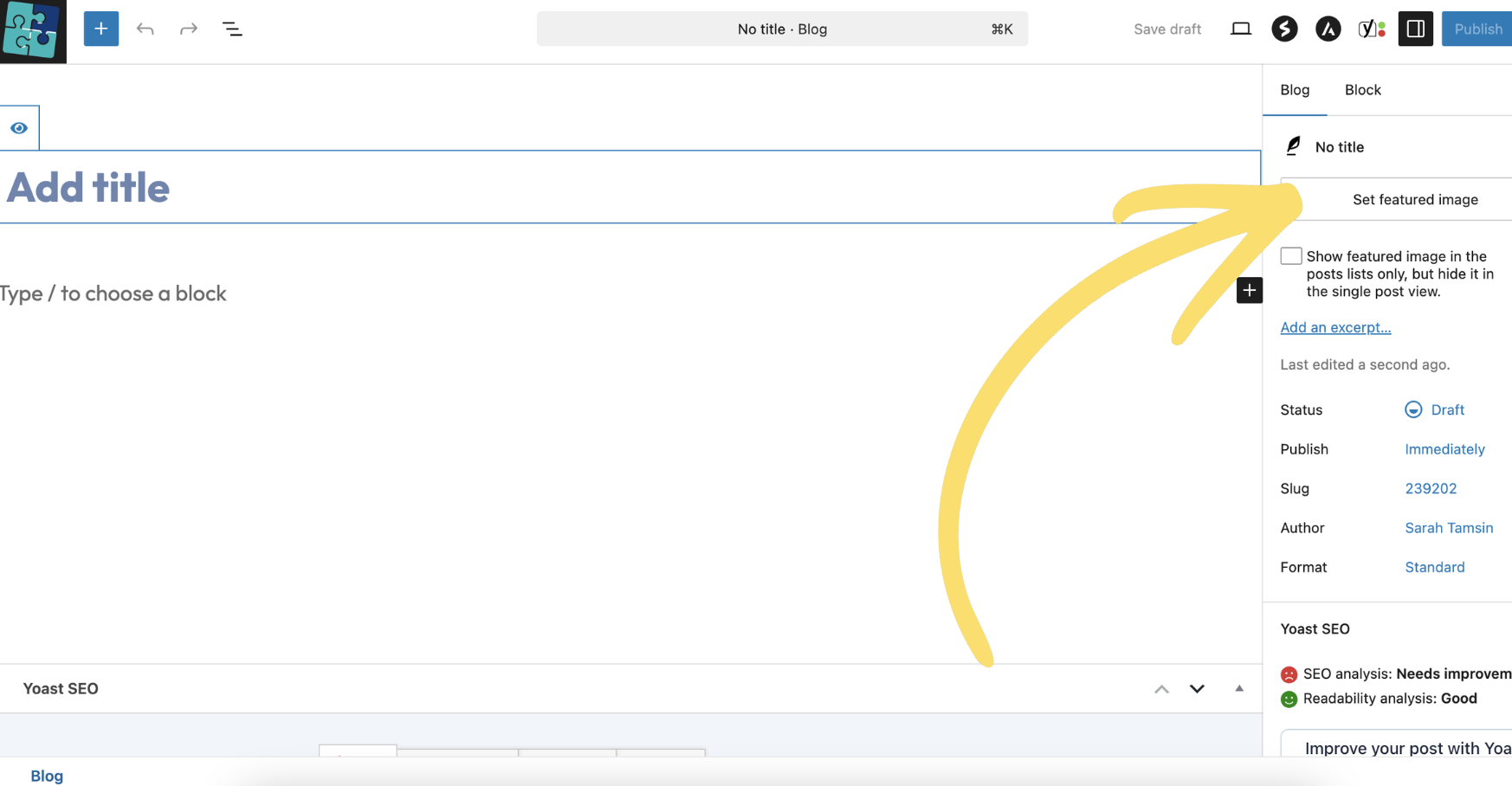
Section titled “Set a featured image”In the right-hand panel, click Set featured image. Upload or select your image from the Media Library.
-
Add a meta description
Section titled “Add a meta description”Scroll down below the content area to find the Yoast SEO section. Click on Search appearance to expand it, then complete the Meta description field.
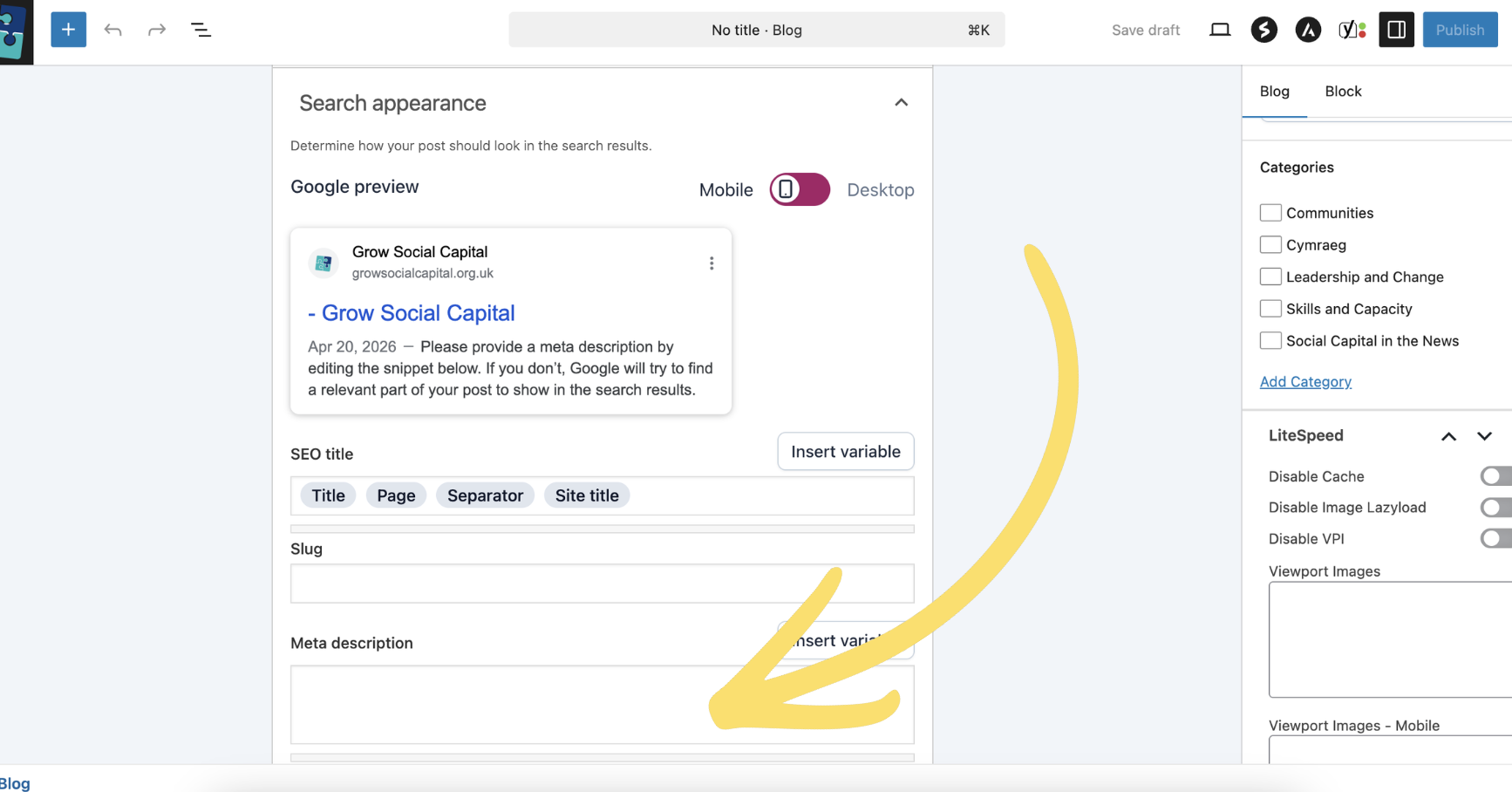
- Length: aim for 120–155 characters
- Summarise what the service is about in plain language
- Naturally include the main topic or keyword
- Do not simply repeat the title word for word
-
Publish your service
Section titled “Publish your service”When you are happy with your content, click the Publish button in the top-right corner. WordPress will ask you to confirm — click Publish again to make it live.
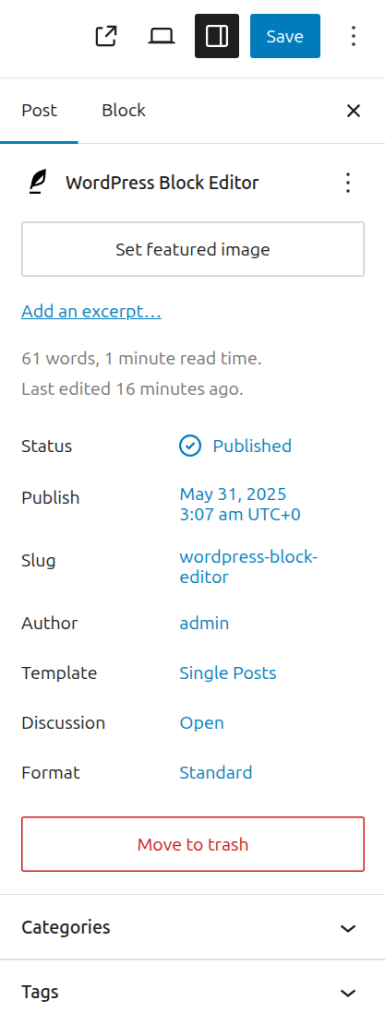
Use Save draft if you are not ready to publish yet. You can return to it from Services → All Services.
Page last updated at 20 April 2026 20:46 by Sarah Tamsin