
Your Dashboard
After logging in you will land on the WordPress dashboard — the control centre for the entire website. This guide explains what you are looking at and how to get around.
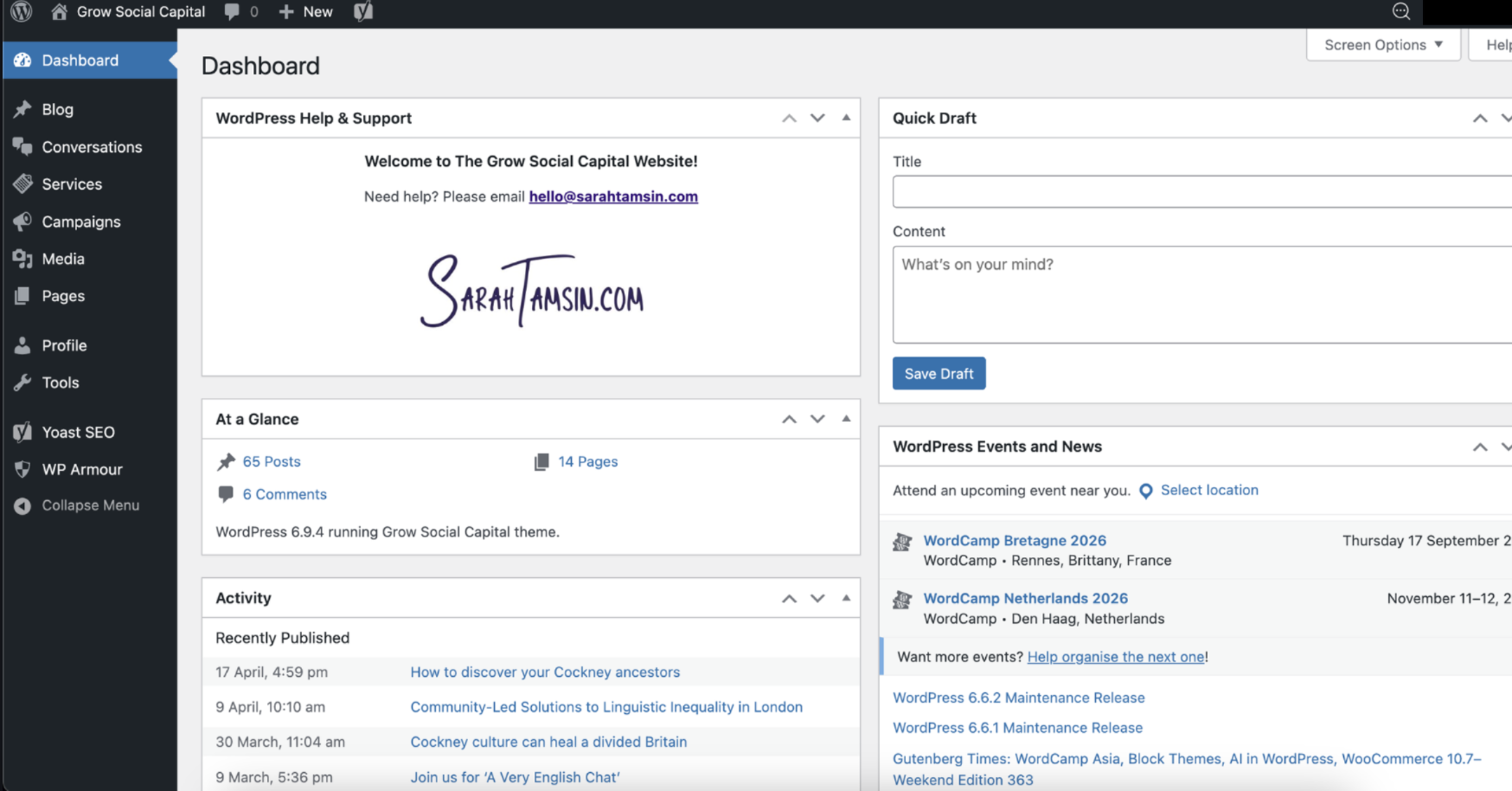
The dashboard layout
Section titled “The dashboard layout”The dashboard has three main areas:
| Area | Description |
|---|---|
| Top bar | Quick links, notifications, and your account menu |
| Left sidebar | The main navigation menu for all admin sections |
| Main content area | Changes depending on which section you are in |
The sidebar menu
Section titled “The sidebar menu”The left sidebar is how you navigate to different parts of the website. The key sections you will use most often are:
- Blog — create and manage blog posts and news articles
- Conversations - a Custom Post Type (CPT) not currently used
- Services — services offered by Grow Social Capital
- Campaigns - campaigns run by Grow Social Capital
- Media - photos, images, files, PDFs, etc.
- Pages — edit the main pages of the website (About, Contact, etc.)
- Profile — view and edit your profile, change your password
Hover over any menu item to see its sub-options, or click it to expand the section.
The top bar
Section titled “The top bar”The black bar at the very top of the screen contains:
- The site name (left) — click this to preview the live website in a new tab
- + New — a quick way to create a new post, page, or media item
- Your account name (right) — hover to access your profile or log out
Returning to the dashboard
Section titled “Returning to the dashboard”You can return to the main dashboard at any time by clicking the WordPress logo or Dashboard at the top of the sidebar menu.
Page last updated at 20 April 2026 20:46 by Sarah Tamsin